Home Screen, New Project, Open, and Compare
A.1 Launching the Application
Activate the conda environment and launch the application from the terminal:
conda activate 3psLCCA
threePSLCCA
A splash screen is displayed while the application loads its material databases and configuration.
A.2 The Home Screen
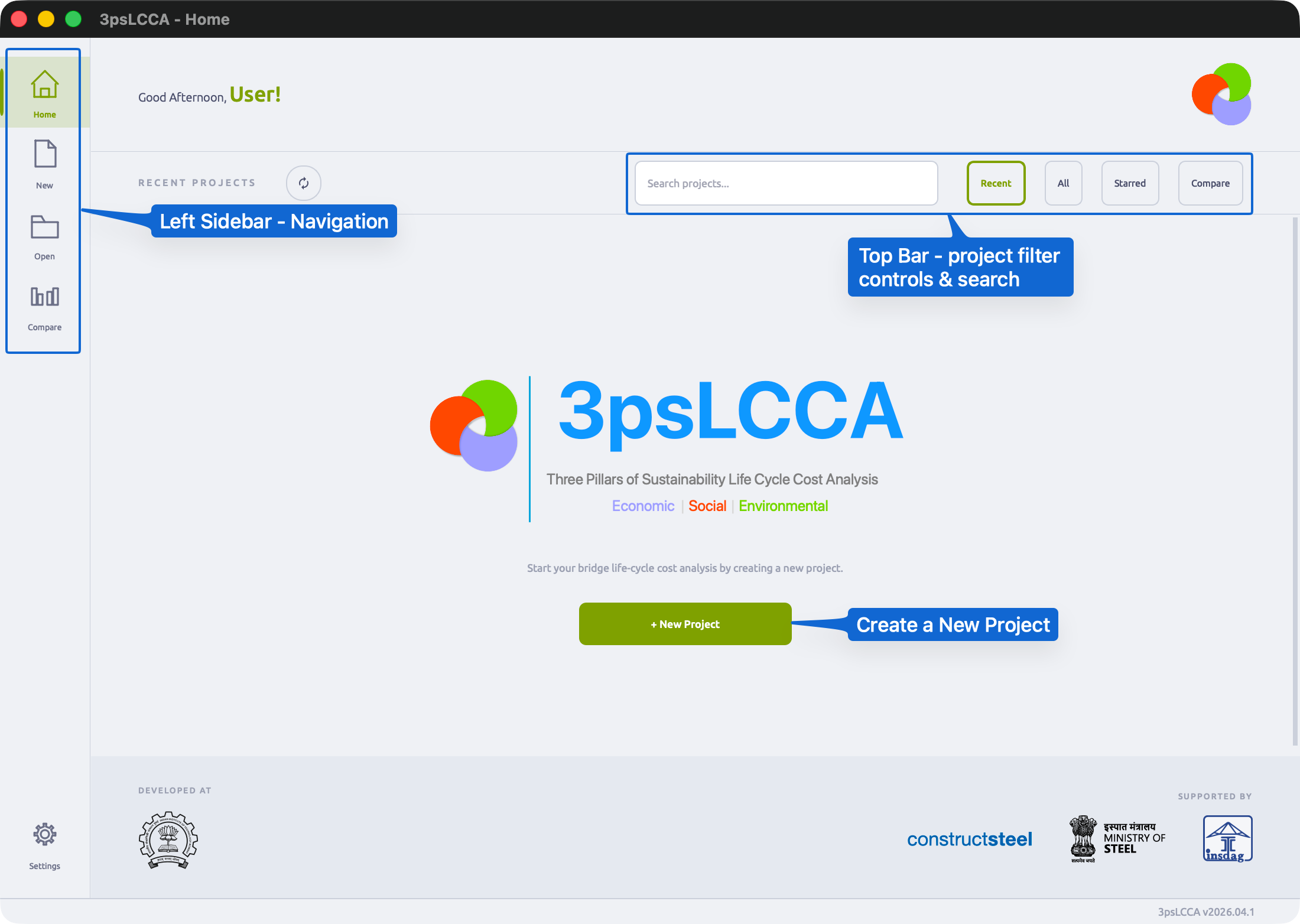
The Home Screen is the first screen you see after the app loads. It is divided into three structural areas: the Left Sidebar, the Top Bar, and the Main Content Area.
A.2.1 Left Sidebar
The left sidebar is fixed and visible on every screen in the application. It contains five navigation buttons, each leading to a distinct area.
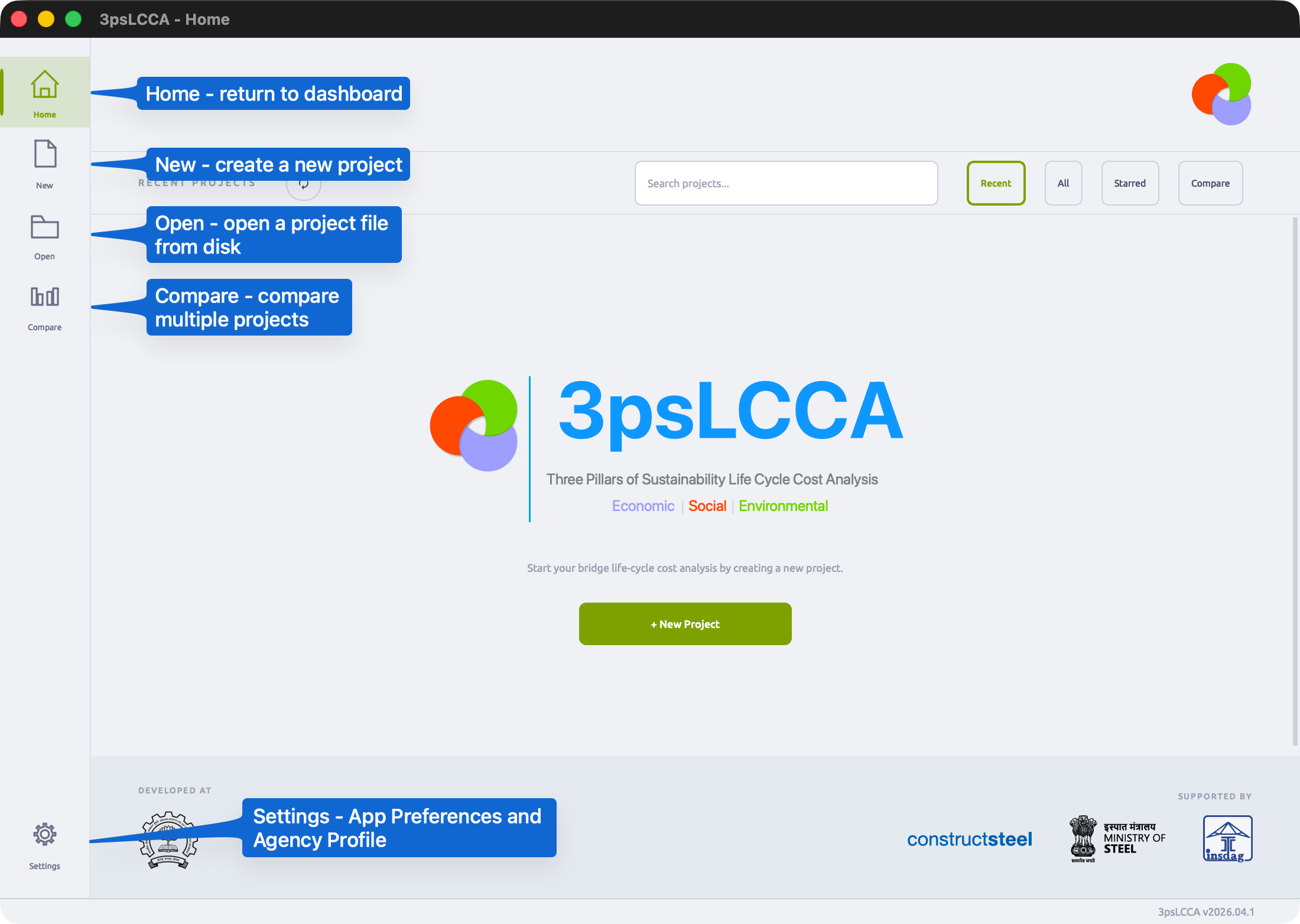
| Button | Action |
|---|---|
| Home | Returns to the project dashboard from anywhere in the app |
| New | Opens the New Project dialog |
| Open | Opens a file browser to load an existing .3psLCCA project file |
| Compare | Opens the project comparison view |
| Settings | Opens application preferences and agency profile management |
A.2.2 Top Bar and Project Views
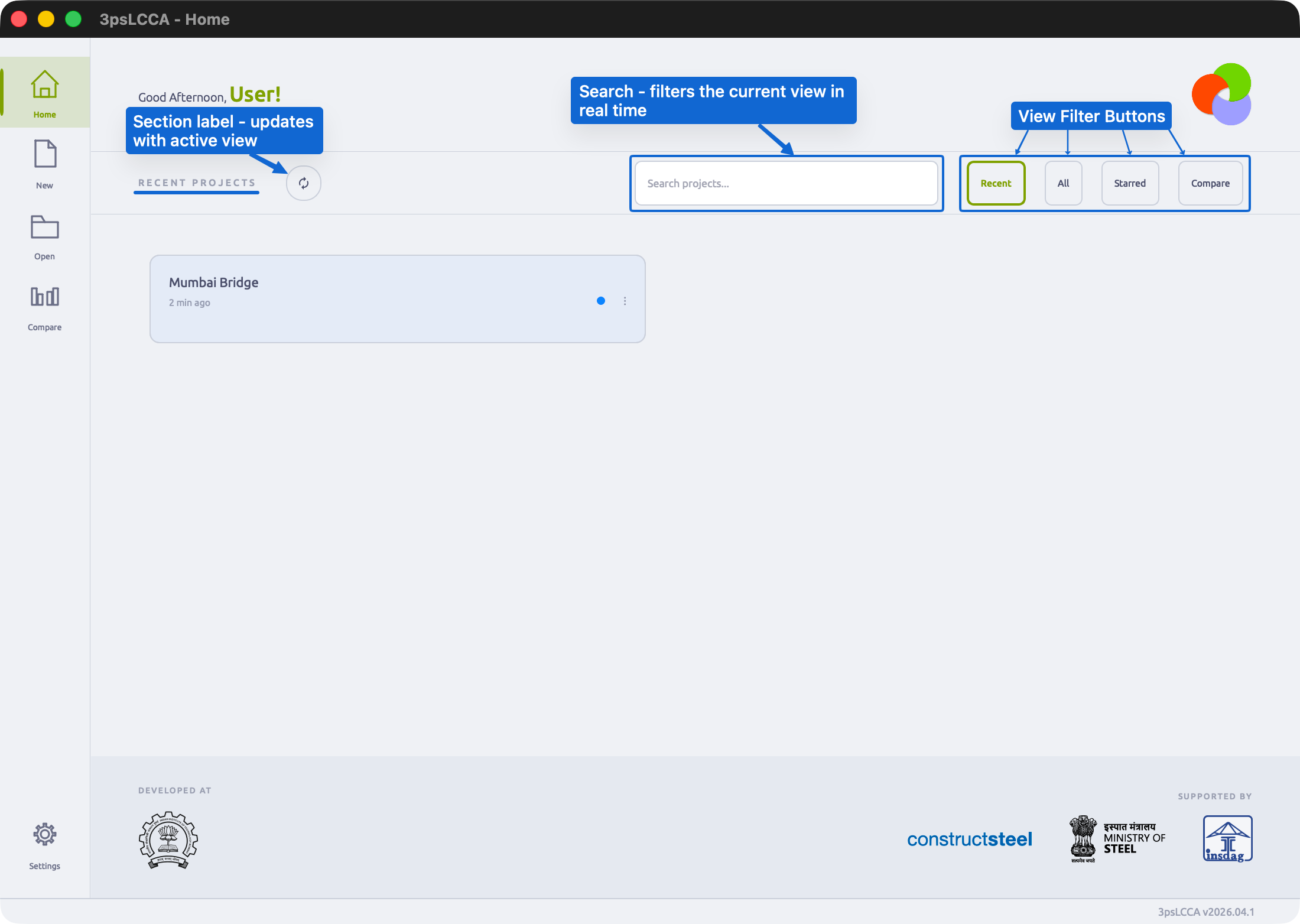
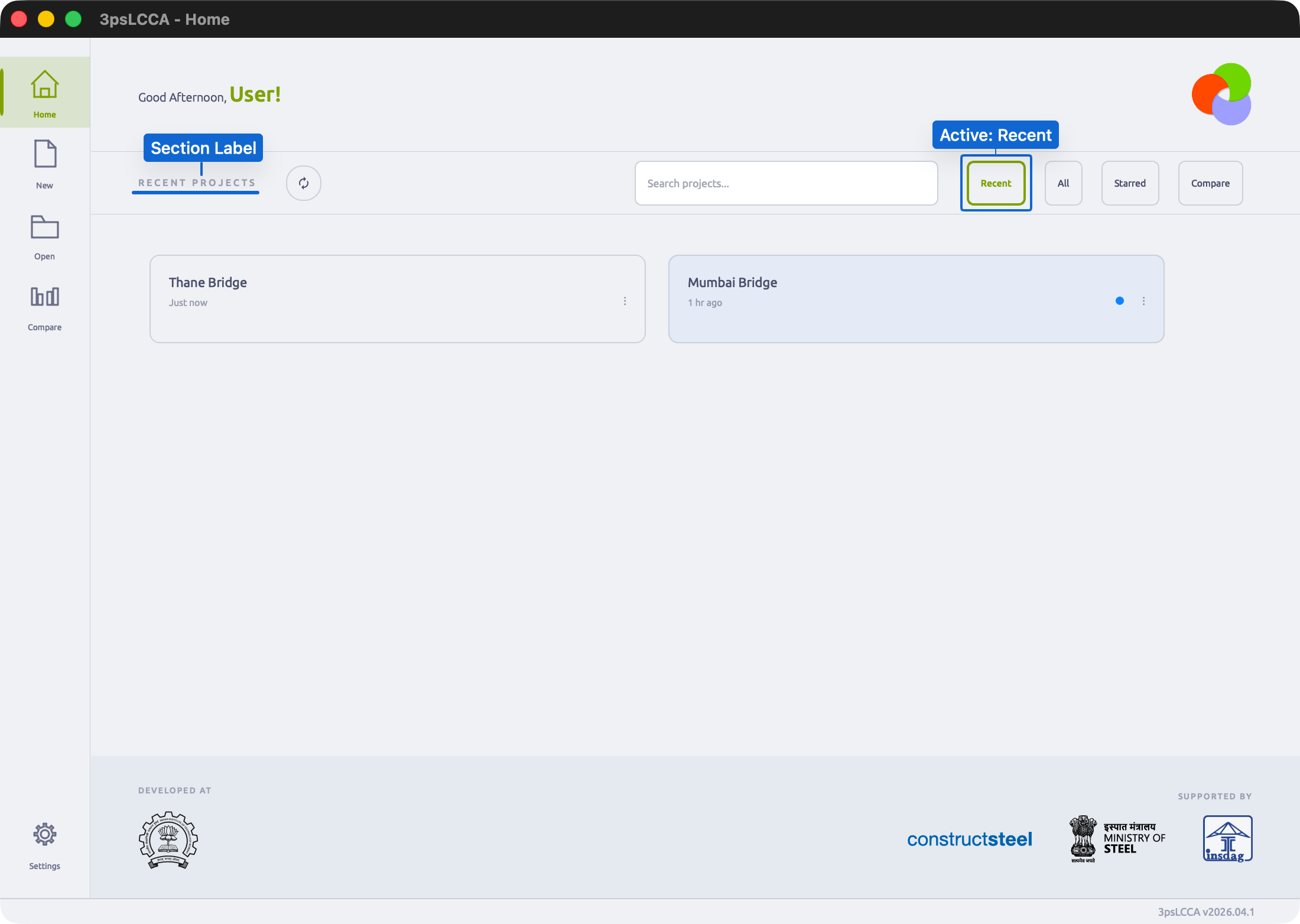
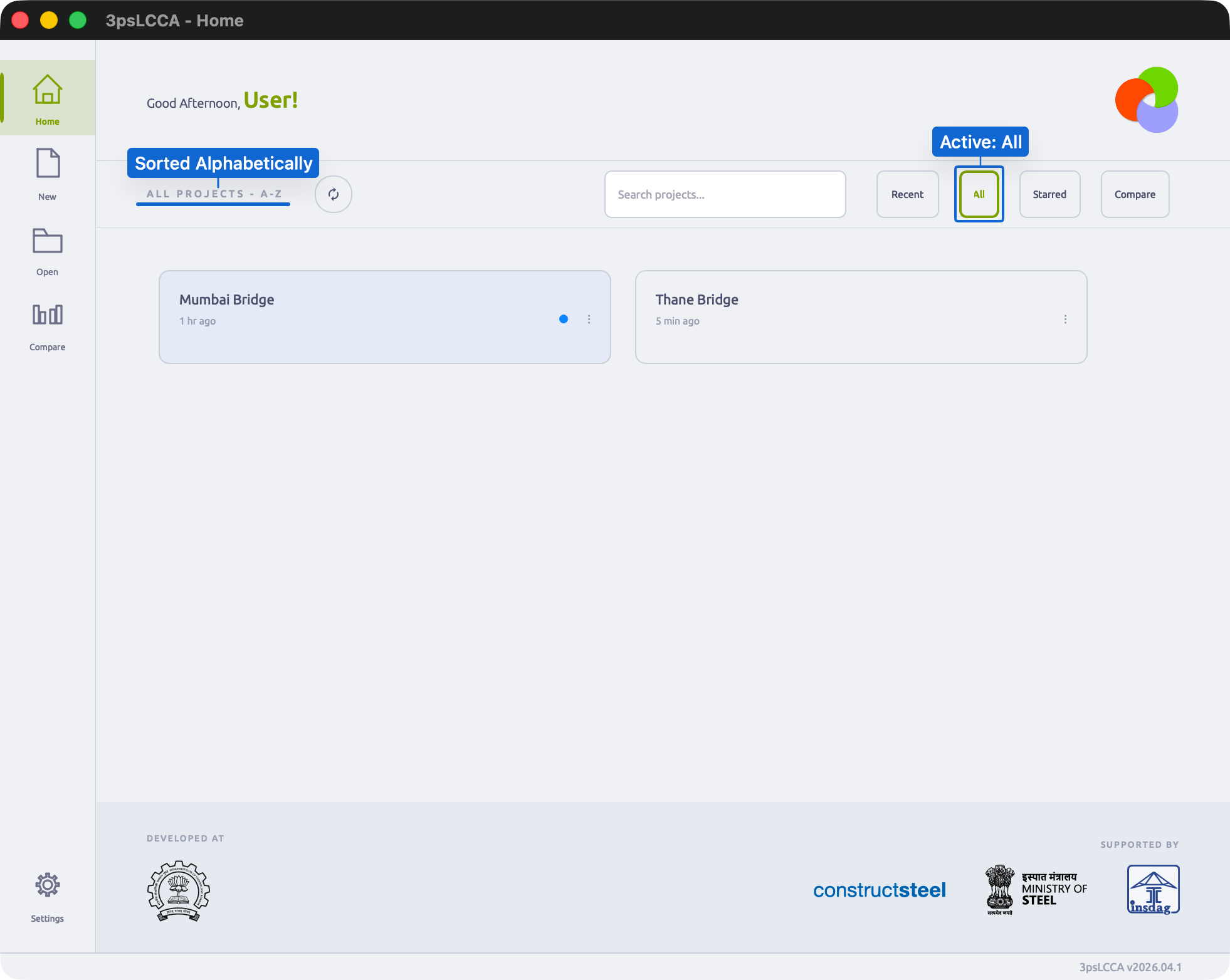
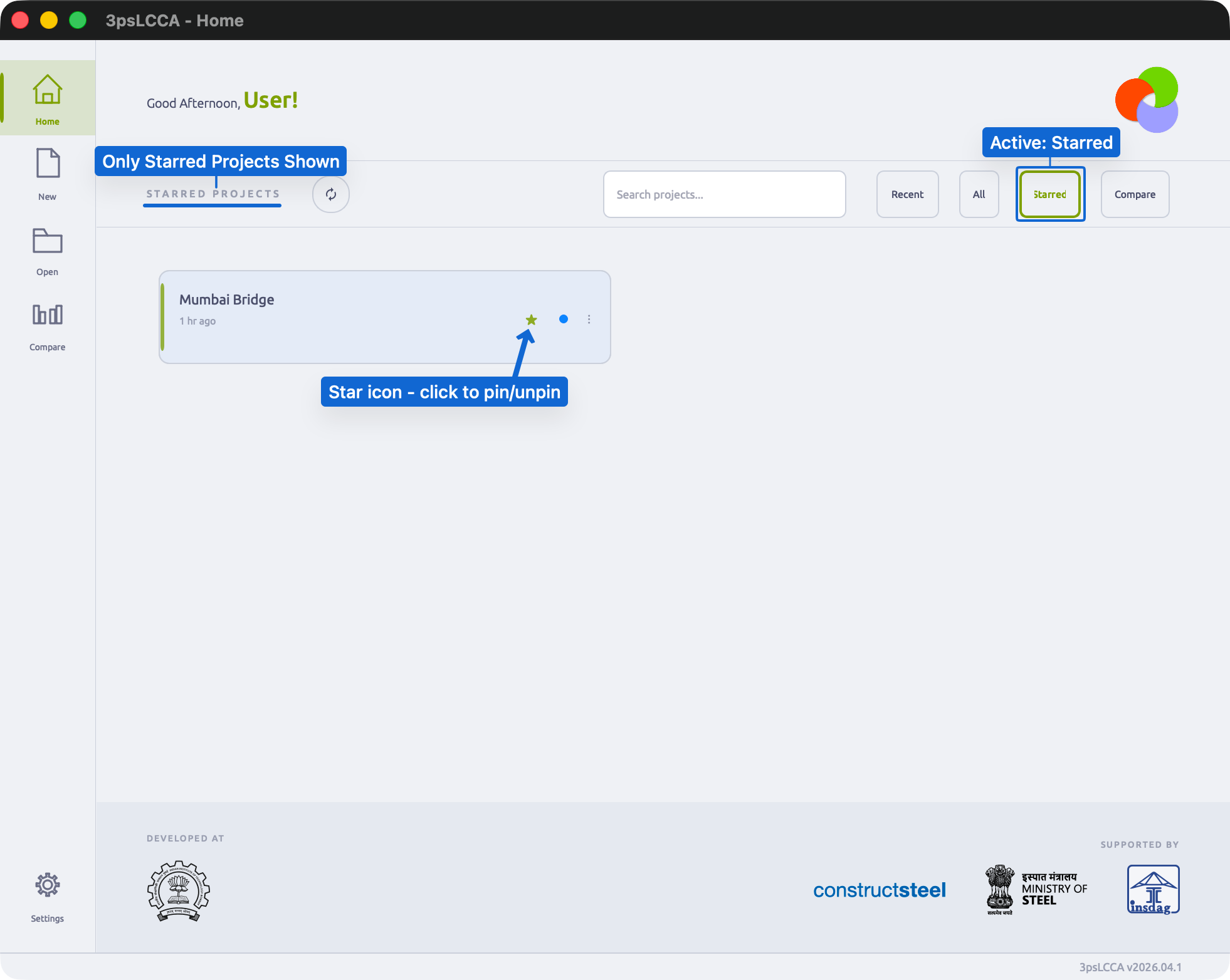
The toolbar sits between the greeting area and the project grid. It contains a dynamic section label, a refresh button, a search field, and four view filter buttons - Recent, All, Starred, and Compare. The section label updates automatically to reflect the active view.
| Button | Section Label shown | What is listed |
|---|---|---|
| Recent | RECENT PROJECTS | All projects, sorted by last opened or last modified - most recent first |
| All | ALL PROJECTS - A-Z | All projects, sorted alphabetically by name |
| Starred | STARRED PROJECTS | Only projects you have starred (pinned). If none are starred, shows an empty state with instructions. |
| Compare | READY TO COMPARE | Only projects that have been fully calculated and locked. Enables multi-select mode for loading into the Compare view. |
The search field applies on top of whichever view is active - typing filters the current list in real time and changes the section label to RESULTS FOR "...".
Each view is shown individually below.
Recent View
All View
Starred View
Compare View
Projects appear in the Compare view only if they have been fully calculated and locked. A project that is still in progress will not appear here.
A.2.3 Project Cards
Each project in the list is shown as a card in the main content area.
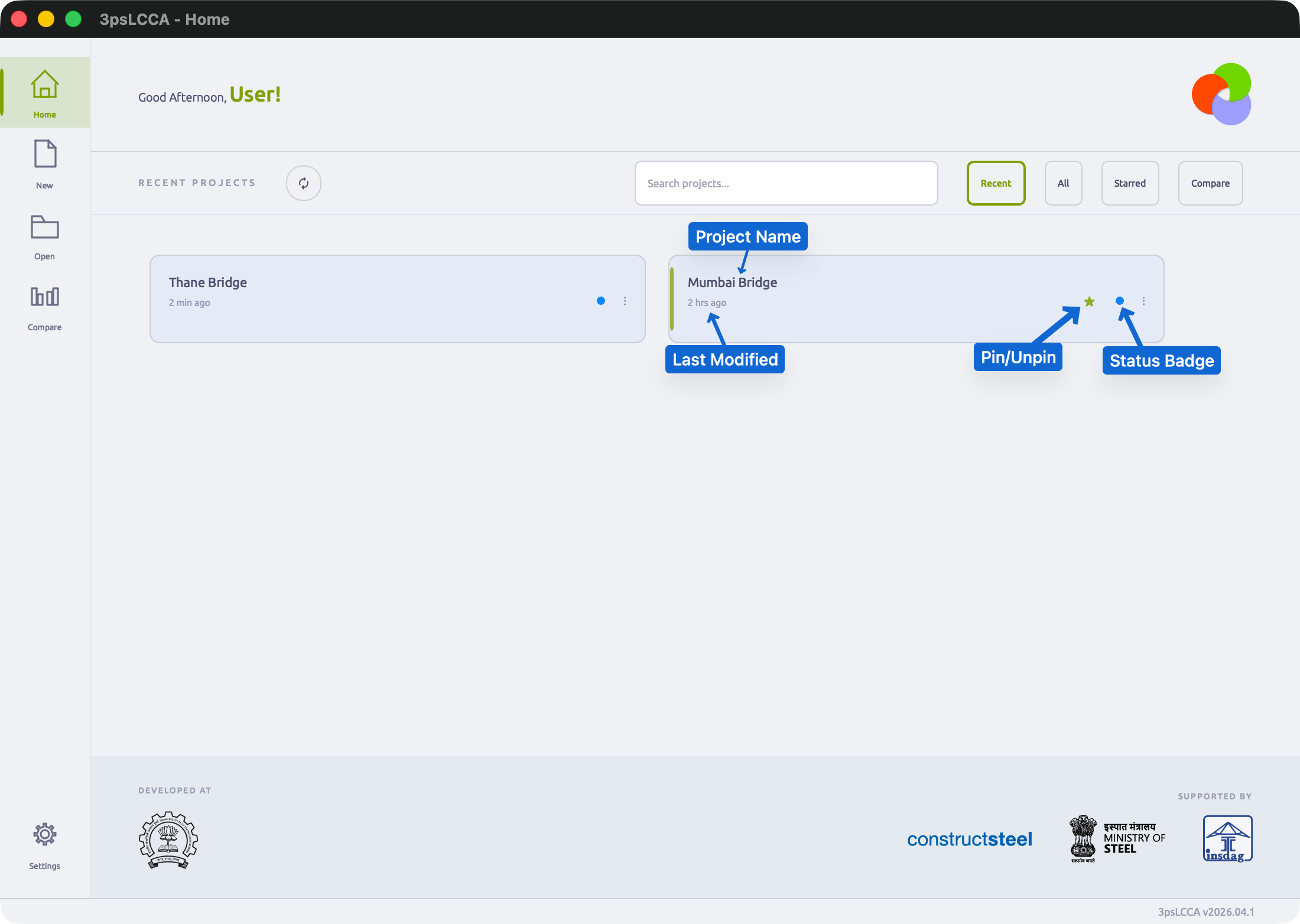
Each card shows:
- Project name
- Last modified - relative timestamp ("2 hours ago", "Yesterday")
- Status badge:
| Badge | Meaning |
|---|---|
OK | Project is intact and ready to open |
Open | Project is currently open in another window |
Needs Recovery | Project was not closed cleanly; app will attempt recovery on open |
Corrupted | Project file is unreadable and cannot be opened |
A.3 Creating a New Project
Click New in the sidebar, or the + New Project button on the Home Screen. The New Project dialog opens.
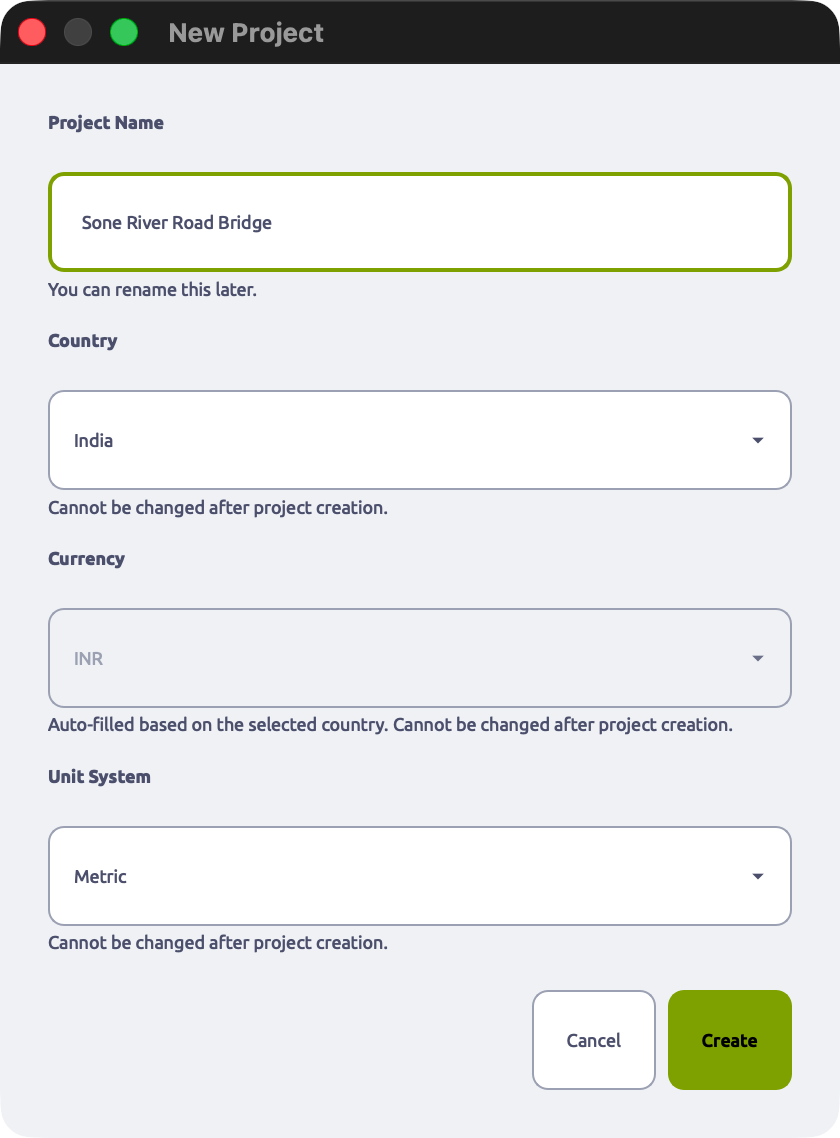
| Field | Required | Behaviour |
|---|---|---|
| Project Name | Yes | Free text. Can be edited later in the General Information section. |
| Country | Yes | Selects the material rate database and regional standards. Locked after creation. |
| Currency | Auto | Auto-filled when Country is selected. All monetary values across the project use this currency. Locked after creation. |
| Unit System | Yes | Metric (SI): metres and kilograms. Imperial (English): feet and pounds. Locked after creation. |
Country, Currency, and Unit System cannot be changed after the project is created because every cost calculation, unit conversion, and material rate lookup in the project depends on them. Changing them mid-project would produce inconsistent results across all sections.
Values used in this guide:
Project Name : Sone River Road Bridge
Country      : India
Currency     : INR
Unit System  : Metric (SI)
Click Create. The app initialises the project and opens the project workspace.
A.4 Opening an Existing Project
From the Home Screen: Click any project card. The project opens immediately.
From disk: Click Open in the sidebar. A file browser opens - navigate to the .3psLCCA file and select it.
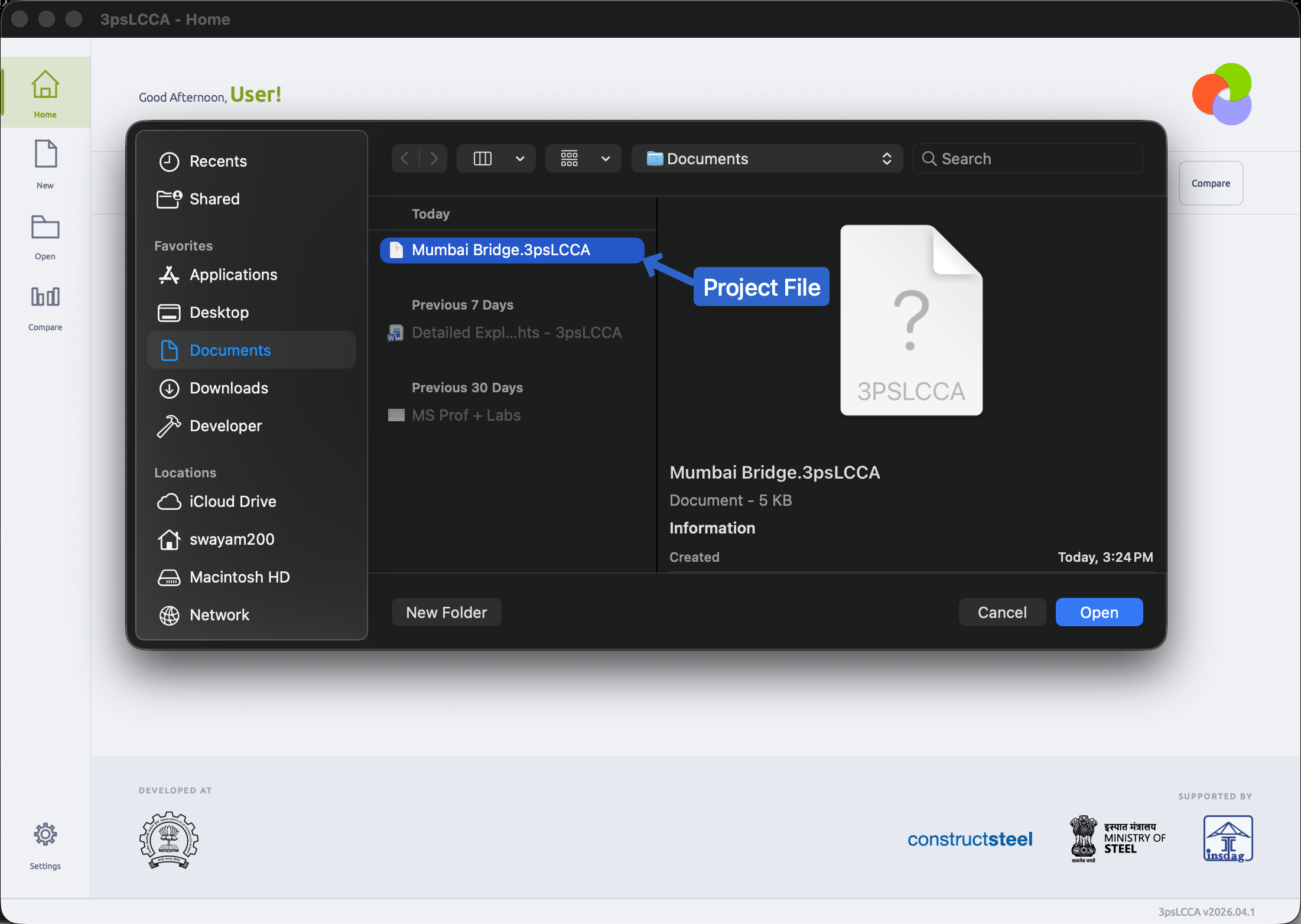
A
.3psLCCAfile is a self-contained project archive. It holds all input data, results, and checkpoints for a single project. It can be copied, moved, or shared like any other file.
A.5 Comparing Projects
The Compare view places two or more projects side by side, showing a breakdown of their life cycle costs. This is the primary tool for evaluating design alternatives against each other - for example, a concrete box girder bridge versus a cable-stayed bridge at the same location.
Only projects that have been fully calculated (via the Calculate button) produce data in the comparison view.
A.5.1 Opening the Compare View
Click Compare in the sidebar.
[TODO - screenshot not yet available: documentation_images/partA/08_compare_empty.png]
A.5.2 Loading Projects and Reading the Comparison Table
Add projects using the selector at the top of the Compare view. The table populates once at least two calculated projects are loaded.
[TODO - screenshot not yet available: documentation_images/partA/09_compare_loaded.png]
Each column in the table corresponds to one project. Each row is a cost category. The Total Life Cycle Cost row at the bottom is the single number used to compare alternatives.
A.6 Settings
Click Settings in the sidebar. The Settings dialog opens as a modal window with two tabs: General and Profiles.
A.6.1 General Tab
The General tab controls display name and appearance.
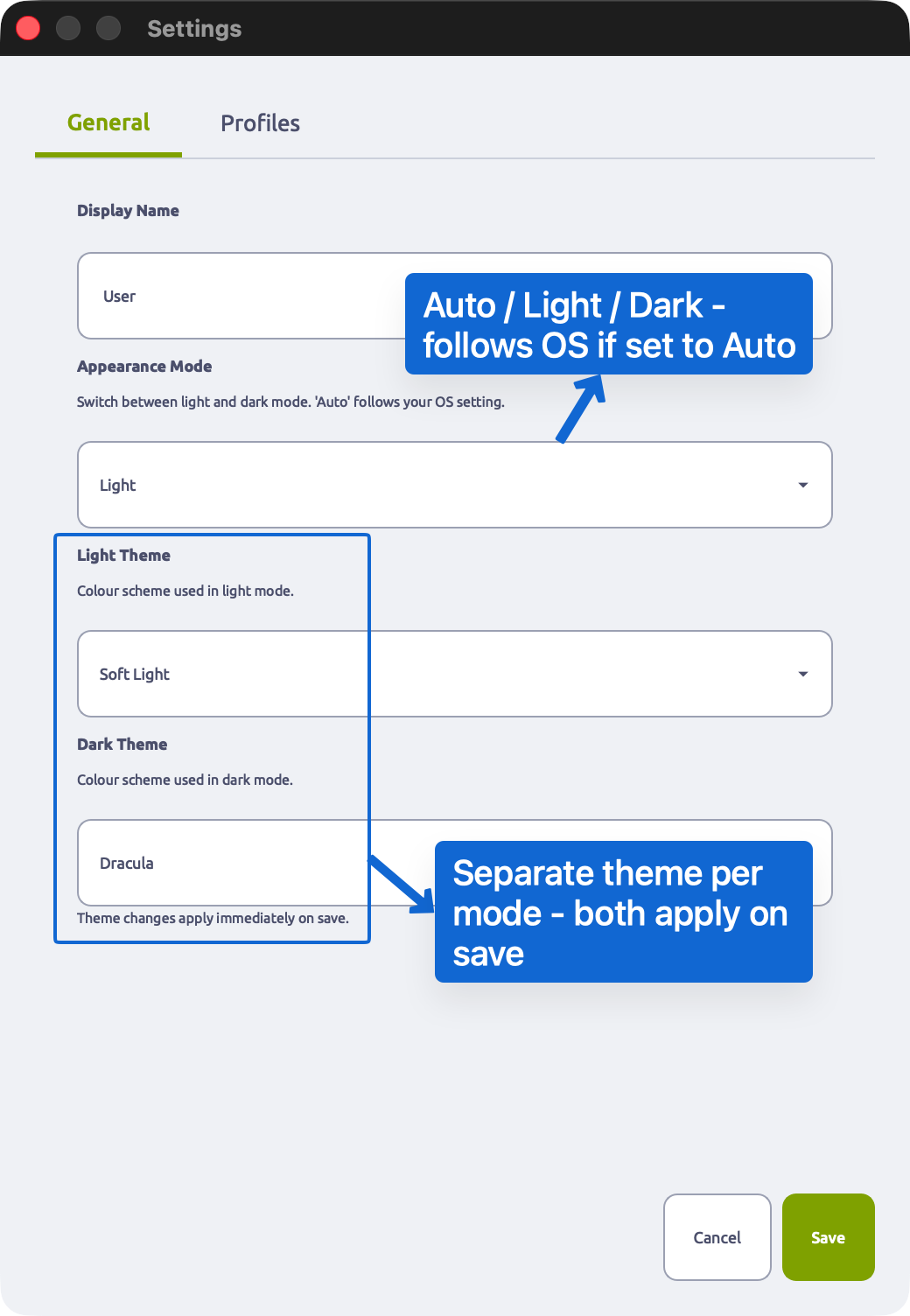
| Field | Description |
|---|---|
| Display Name | Your name as it will appear in generated reports. |
| Appearance Mode | Auto follows the OS light/dark setting. Light and Dark override it. |
| Light Theme | Colour scheme used when in light mode. |
| Dark Theme | Colour scheme used when in dark mode. |
Theme changes take effect immediately on clicking Save.
A.6.2 Profiles Tab
The Profiles tab stores agency details - name, logo, address, and contact information - that can be reused across projects.
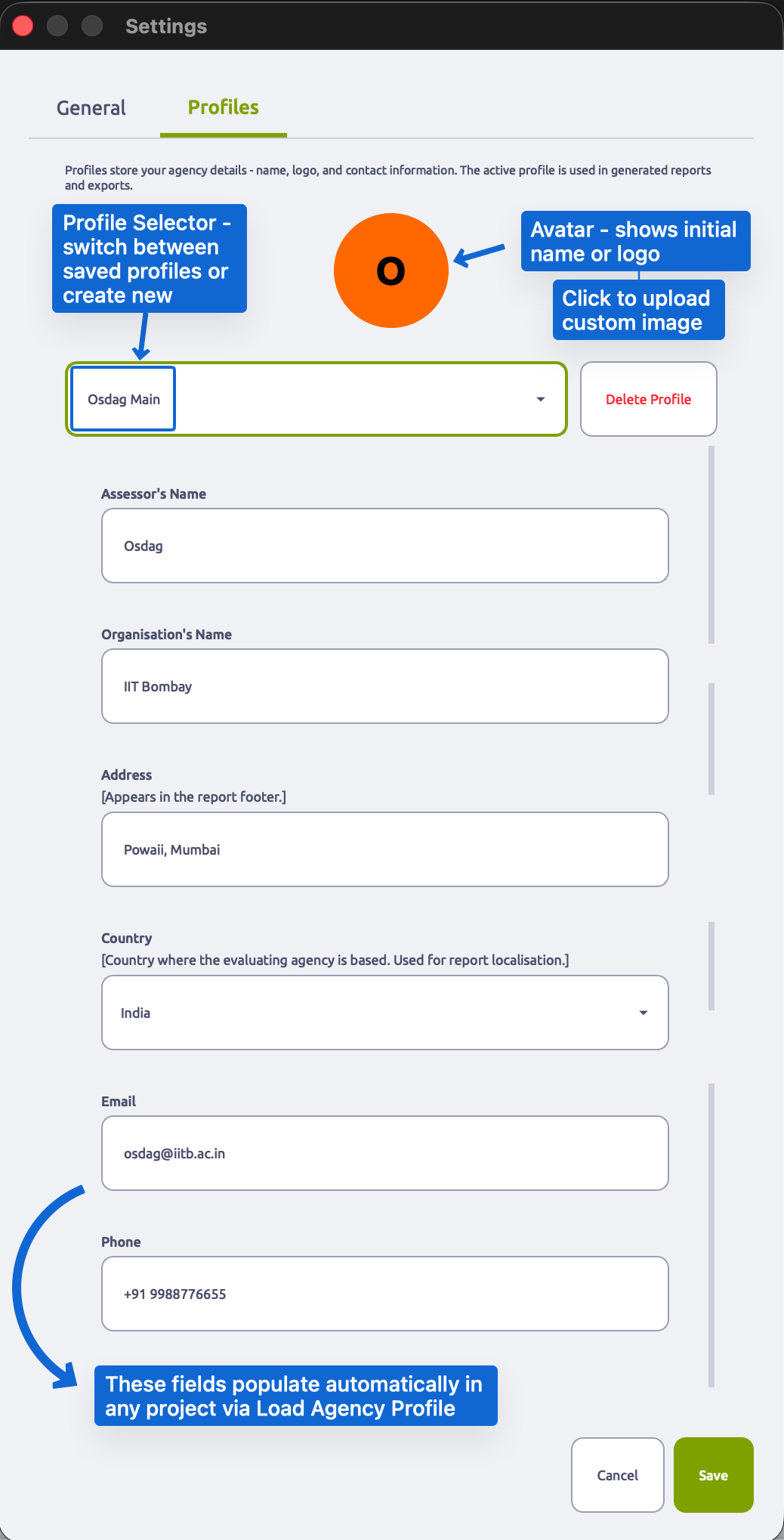
| Element | Description |
|---|---|
| Avatar | Displays the first letter of the profile name, or the uploaded logo. Click to upload a PNG/JPG. |
| Profile selector | Dropdown listing all saved profiles. Select + New Profile to create one. |
| Delete Profile | Permanently removes the selected profile from local storage. |
| Form fields | Assessor's name, organisation name, logo, address, country, email, phone. |
Profiles are stored locally on the machine - not inside any project file. To populate a project's General Information section with a saved profile, use Load Agency Profile inside that project.
A.7 Frequently Asked Questions
Q: Can I rename a project after creation? Yes. The Project Name field in the General Information section is editable at any time. Country, Currency, and Unit System cannot be changed.
Q: What happens if I open a project that is already open in another window?
The app detects this and shows an Open status badge on the project card. Opening it again will prompt you to confirm.
Q: The app shows "Needs Recovery" on my project. Is data lost? Not necessarily. This badge appears when the project was not closed cleanly (e.g. a crash or force-quit). Open the project - the app will attempt to recover the last saved state automatically. Check your data after recovery and use a Checkpoint if anything looks incorrect.
Q: I cannot find my project on the Home Screen.
Use the Search bar - type any part of the project name. Alternatively, use Open to browse directly to the .3psLCCA file on disk.
Q: Can I share a project file with a colleague?
Yes. Copy the .3psLCCA file and send it. Your colleague can open it using Open in their installation of 3psLCCA. All data, inputs, and results are embedded in the single file.
Q: Compare shows zero values for one of my projects. The Compare tool only shows data for projects that have been calculated. Open the project, complete all required inputs, and click Calculate to generate results before comparing.