Construction Work Data
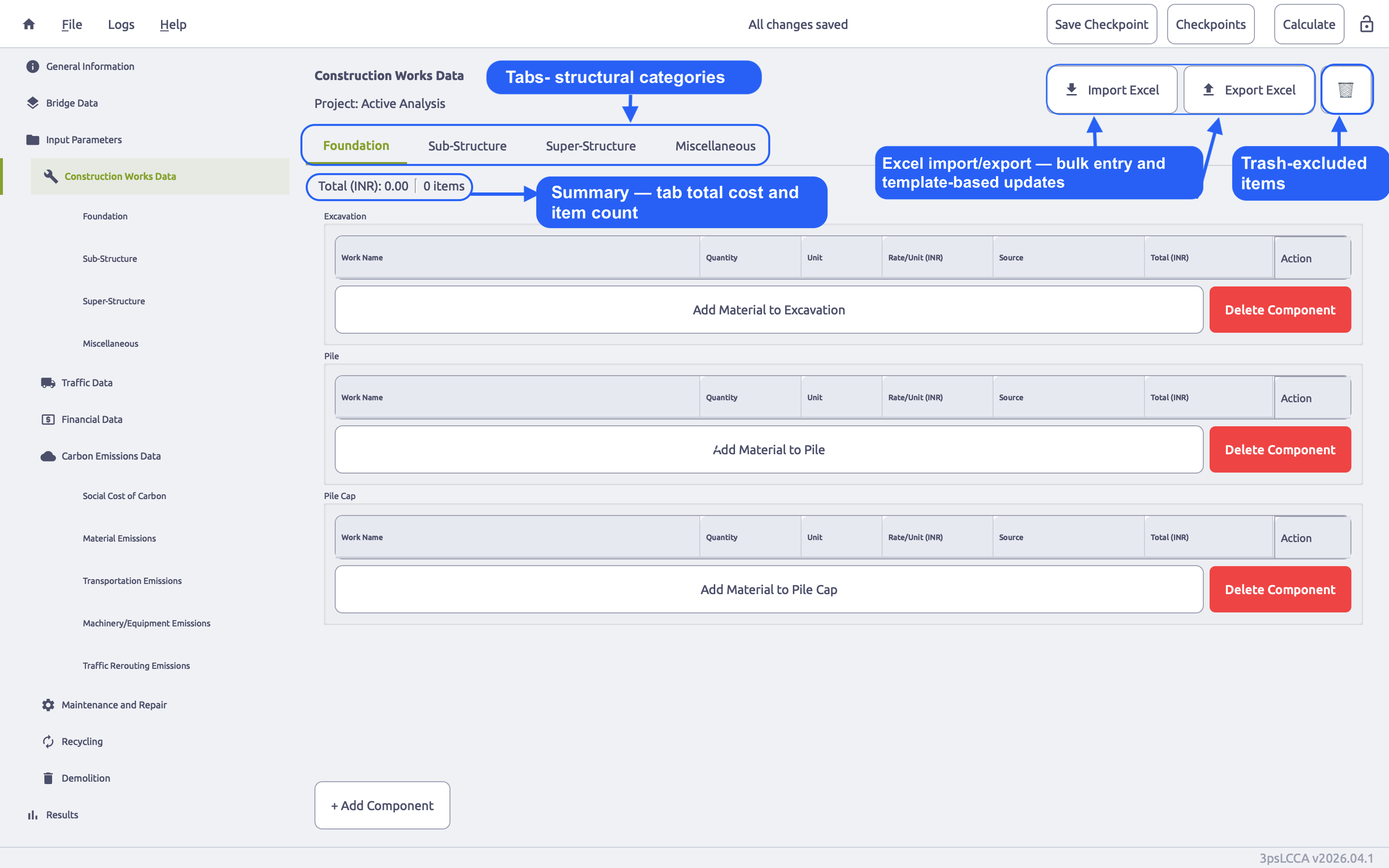
The Construction Work Data page captures the bill-of-quantities style material inputs used to compute the initial construction cost of the bridge. Data is organised into four tabs aligned to typical bridge construction categories: Foundation, Sub-Structure, Super-Structure, and Miscellaneous.
Each tab contains component sections (e.g., Pile Cap, Pier, Girder) with a material table under each component. Materials can be entered manually or imported from an Excel template. Items moved to Trash are excluded from calculations until restored.
C.1 Overview of the Construction Work Data page
Open Construction Work Data from the left navigation menu. The page contains:
- A top header area labelled Construction Works Data
- Action buttons: Import Excel, Export Excel, and Trash (shows a count when items exist in Trash)
- A tab bar for Foundation, Sub-Structure, Super-Structure, and Miscellaneous
C.1.1 Tab summary bar
Each tab shows a summary bar at the top with:
- Total (Currency) - sum of (Quantity \times Rate) for all active (non-trashed) materials in the current tab
- Items - number of active (non-trashed) material rows in the current tab
Items in Trash are excluded from both Total and Items.
C.2 Foundation tab
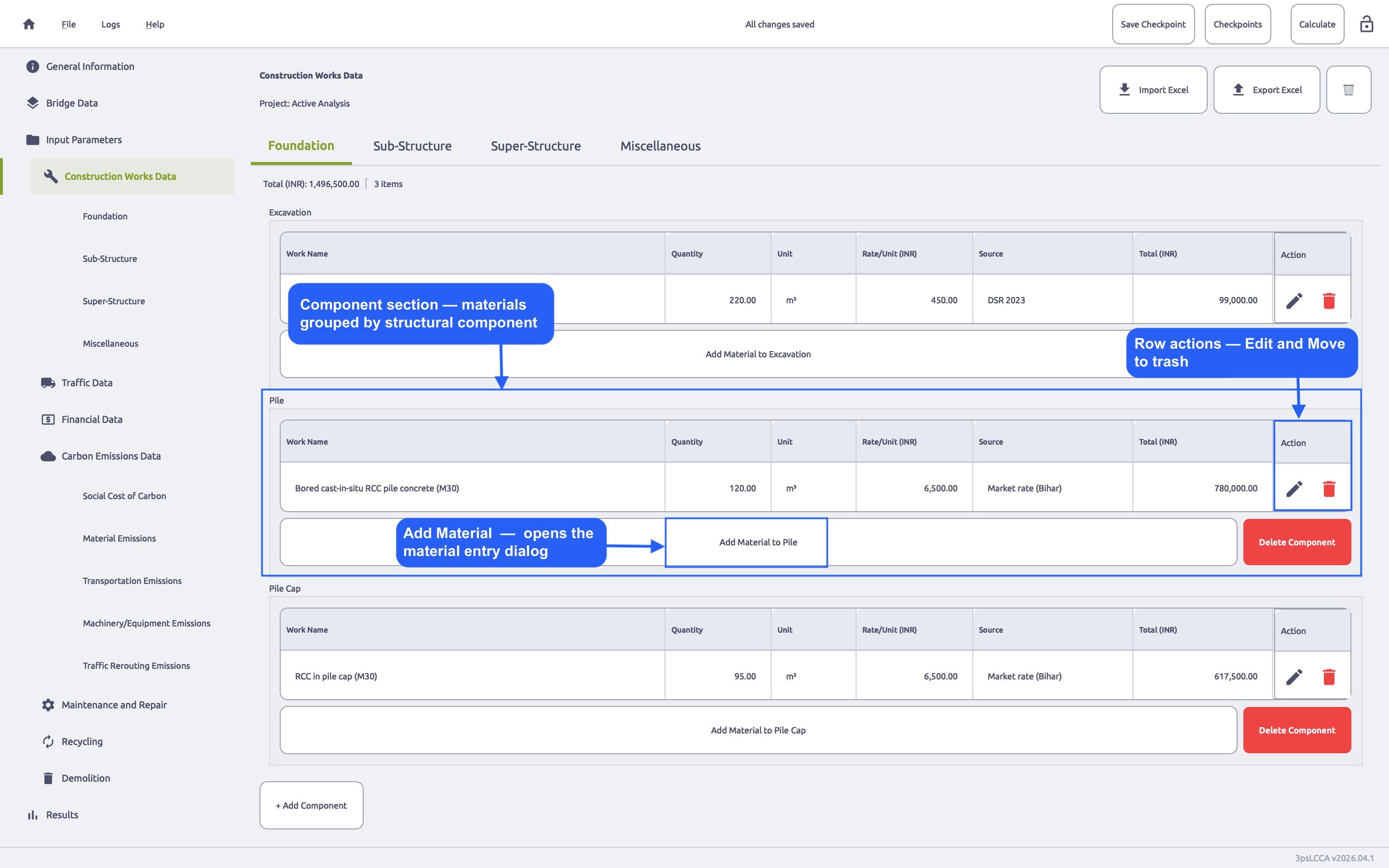
Open the Foundation tab. A component section is displayed for each foundation component. By default, a new project includes these Foundation components:
- Excavation
- Pile
- Pile Cap
Each component section contains:
- A materials table
- A button Add Material to <Component>
- A button Delete Component
C.2.1 Materials table (per component)
Each component table uses the same columns:
| Column | Meaning |
|---|---|
| Work Name | Material name as entered in the Material dialog |
| Quantity | Quantity value entered in the Material dialog |
| Unit | Unit selected in the Material dialog |
| Rate/Unit (Currency) | Unit rate entered or auto-filled |
| Source | Rate source text (manual or database reference text) |
| Total (Currency) | (Quantity \times Rate) |
| Action | Edit material, Move to trash |
Double-clicking a material row opens the Edit dialog for that row.
C.2.2 Adding a component (Foundation)
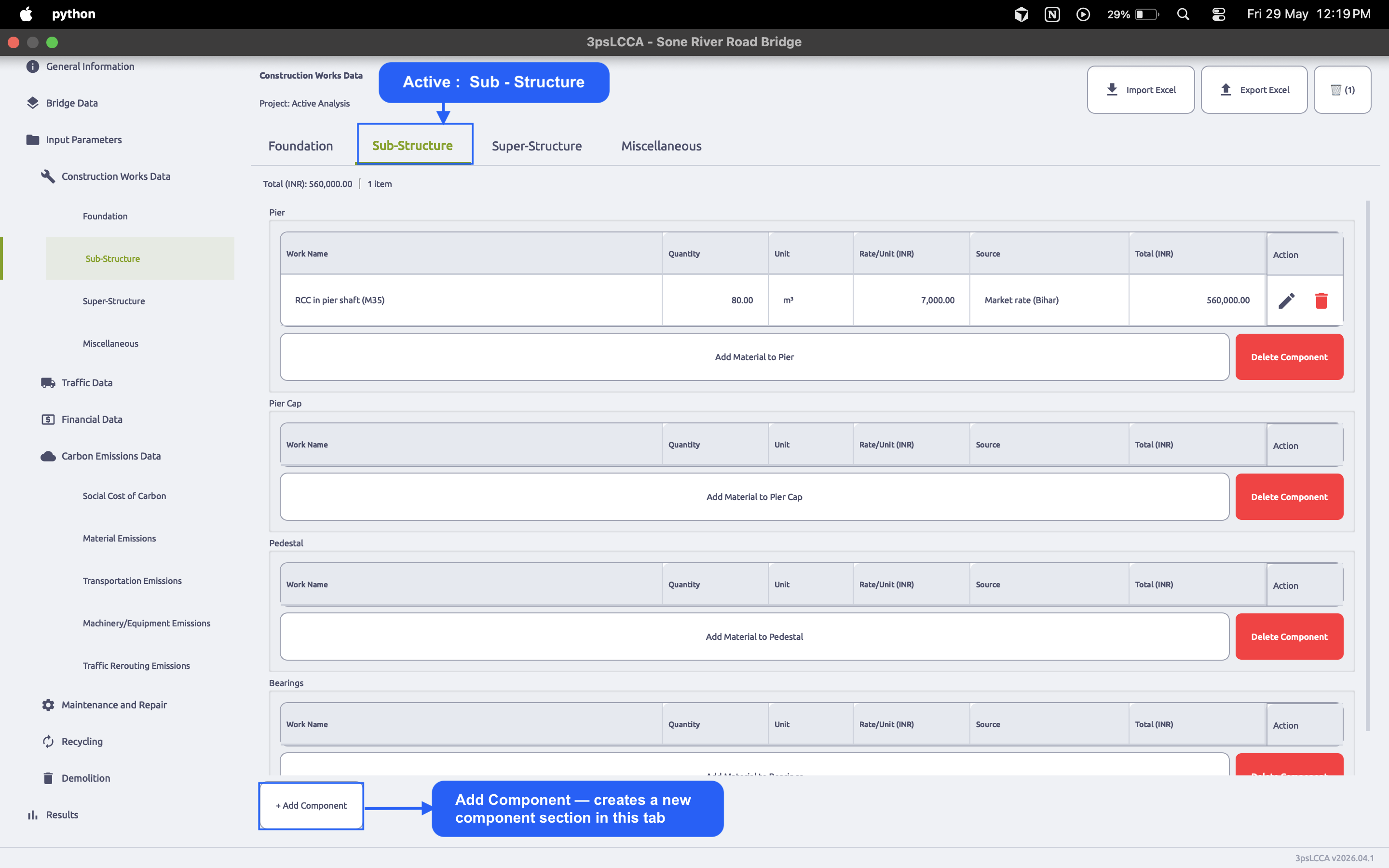
Click + Add Component at the bottom of the tab. Enter a component name and click Add.
If the component name already exists in the same tab, a duplicate warning is shown and the component is not created.
C.2.3 Deleting a component (Foundation)
Click Delete Component inside a component section. Confirmation is required.
Deleting a component permanently removes the component and all its materials (including any items not in Trash).
C.3 Sub-Structure tab
Open the Sub-Structure tab. By default, a new project includes these Sub-Structure components:
- Pier
- Pier Cap
- Pedestal
- Bearings
The Sub-Structure tab uses the same component-section layout, materials table columns, and row actions described in C.2.
C.4 Super-Structure tab
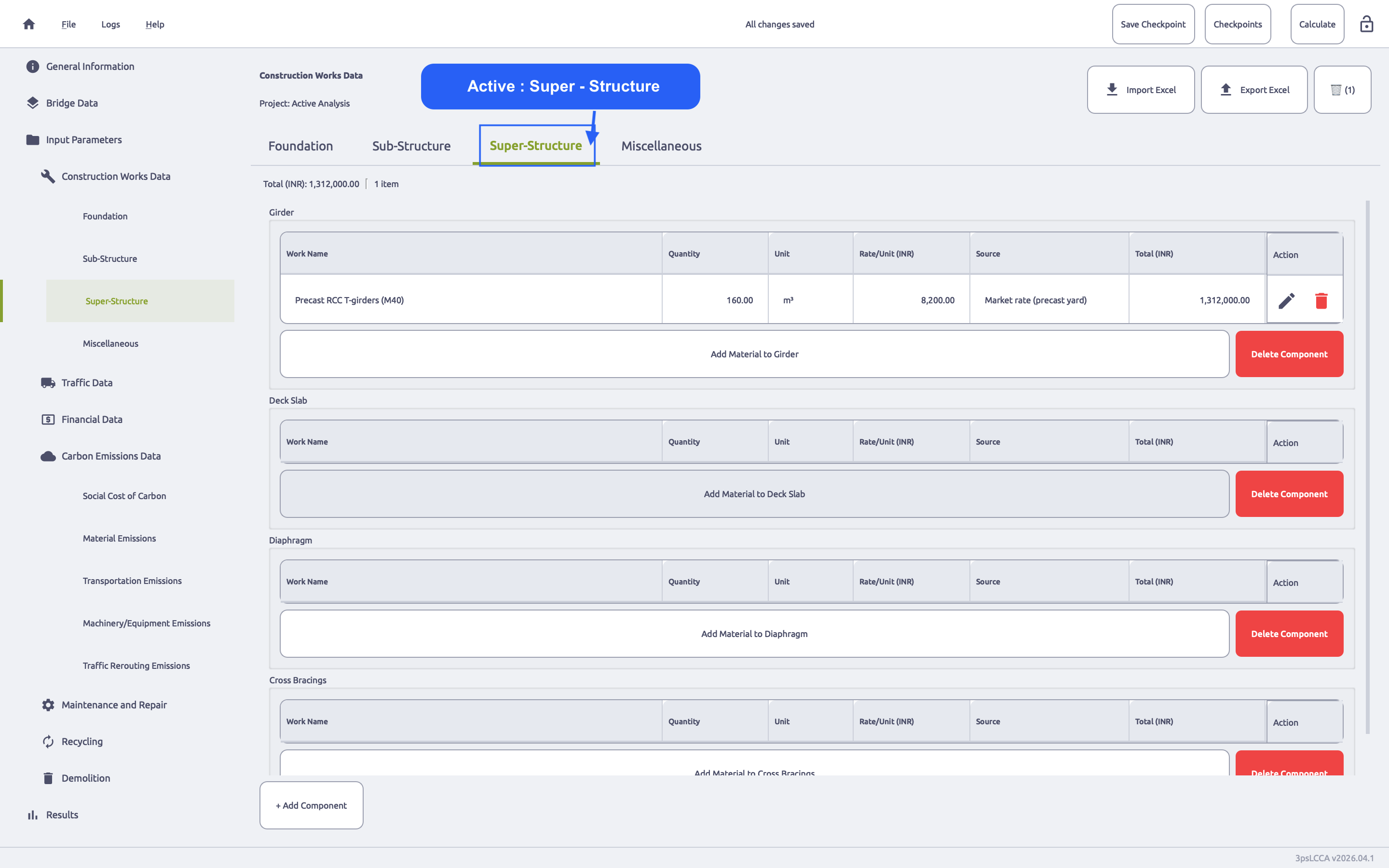
Open the Super-Structure tab. By default, a new project includes these Super-Structure components:
- Girder
- Deck Slab
- Diaphragm
- Cross Bracings
The Super-Structure tab uses the same component-section layout, materials table columns, and row actions described in C.2.
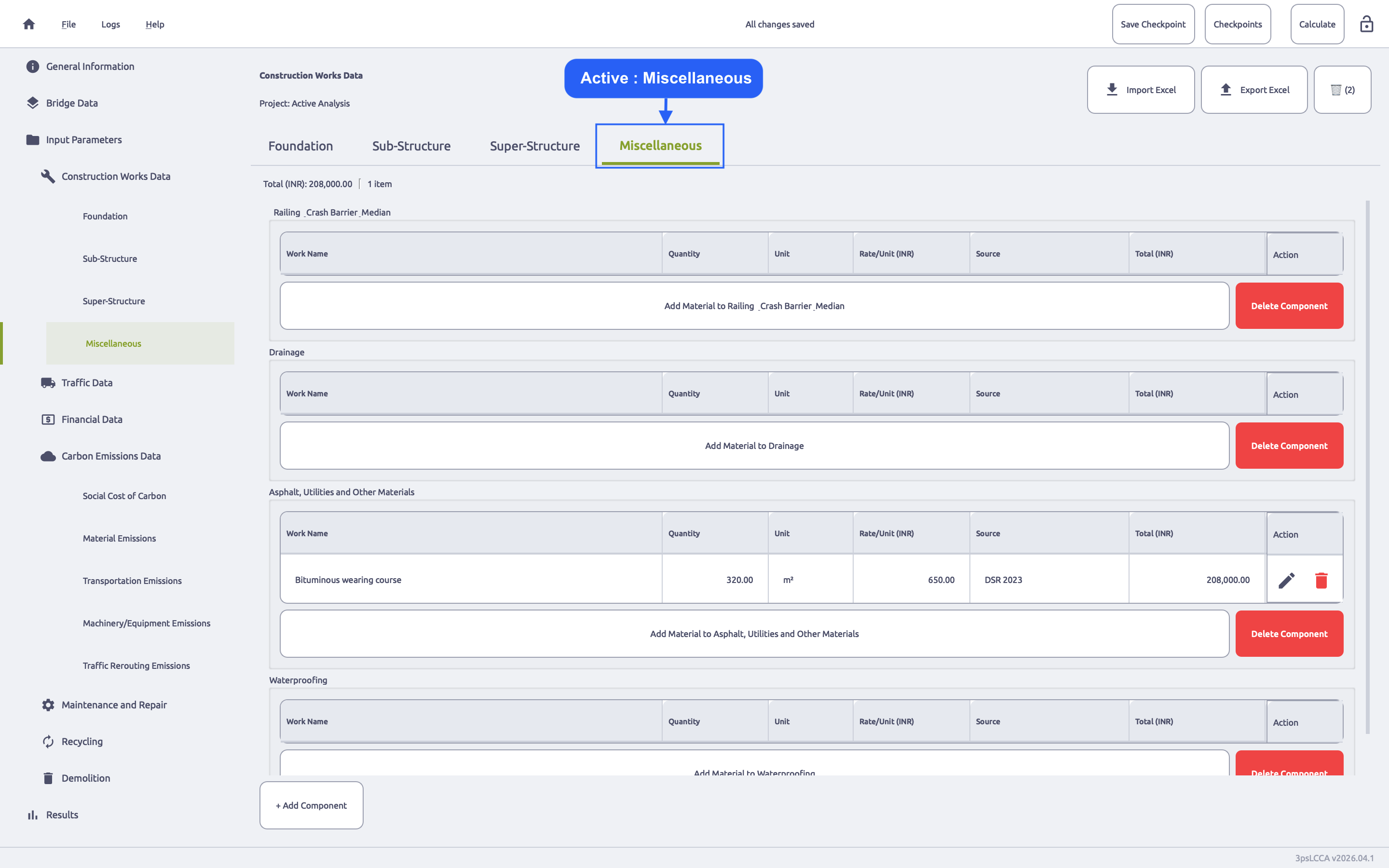
C.5 Miscellaneous tab
Open the Miscellaneous tab. By default, a new project includes these Miscellaneous components:
- Railing & Crash Barrier & Median
- Drainage
- Asphalt, Utilities and Other Materials
- Waterproofing
The Miscellaneous tab uses the same component-section layout, materials table columns, and row actions described in C.2.
During Excel import, any unrecognised CAT# sheet name is routed into Miscellaneous and grouped under a component name derived from the sheet name.
C.6 Adding a material (Material Dialog)
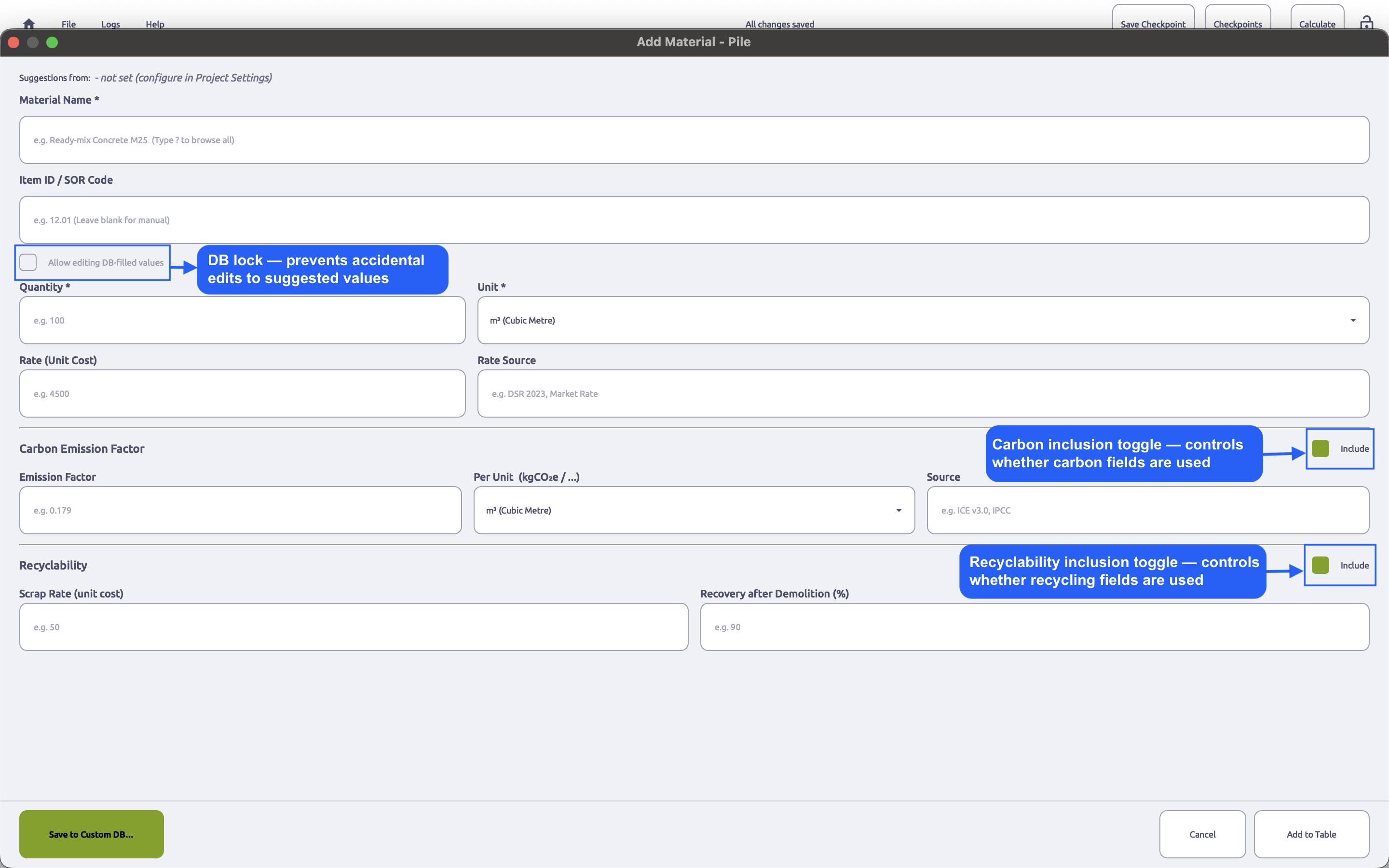
Click Add Material to <Component> in any component section. The Add Material dialog opens. The same dialog is used for:
- Add Material - adding a new row
- Edit Material - editing an existing row (opened via Edit action or double-click)
C.6.1 Material suggestions and auto-fill (when configured)
The dialog can provide material suggestions from the project’s configured schedule-of-rates (SOR) database.
- A label Suggestions from: shows the active database key.
- If a database is configured, a Category dropdown may appear for filtering suggestions.
- In Material Name, entering
?opens the full suggestion list. - Selecting a suggested material auto-fills fields such as Unit, Item ID / SOR Code, Rate, Rate Source, and Carbon Emission Factor (when available).
When a suggestion is selected, DB-filled fields are locked by default. Use Allow editing DB-filled values only when changes are intentional.
C.6.2 Basic fields
| Field | Required | Description |
|---|---|---|
| Material Name | Yes | Work name shown in the table. Also used to detect duplicates inside the same component. |
| Item ID / SOR Code | No | Optional reference code for traceability. |
| Quantity | Yes | Must be greater than zero. |
| Unit | Yes | Unit code/symbol for the quantity. |
| Rate (Unit Cost) | No | Unit rate. When suggestions are used, this may be auto-filled. |
| Rate Source | No | Text reference for the rate (e.g., DSR year, market source). |
Validation: Material Name is required. Quantity must be (> 0). Duplicate names inside the same component are blocked when adding a new row.
C.6.3 Carbon Emission Factor
This section controls per-material carbon emission fields.
| Field / Control | Purpose |
|---|---|
| Include | If enabled, carbon emission data is stored and used for carbon calculations. |
| Emission Factor | Numeric emission factor. |
| Per Unit (kgCO₂e / …) | Denominator unit used with the emission factor. |
| Source | Reference for emission factor. |
| Conversion Factor | Factor converting the material unit into the denominator unit when needed. |
The dialog also shows a formula preview when Quantity, Emission Factor, and Conversion Factor are valid non-zero values.
Validation warnings (carbon):
- If Include is enabled but Emission Factor is 0, a warning is shown and carbon inclusion may be disabled.
- If Include is enabled but Conversion Factor is 0, a warning is shown and carbon inclusion may be disabled.
- If material unit and carbon denominator unit represent different dimensions and Conversion Factor is 1.0, a confirmation warning is shown.
C.6.4 Recyclability
This section controls end-of-life scrap and recovery fields.
| Field / Control | Purpose |
|---|---|
| Include | If enabled, recycling/scrap data is stored and used for recyclability calculations. |
| Scrap Rate (unit cost) | Scrap value per unit at end-of-life. |
| Recovery after Demolition (%) | Percentage recovery after demolition (0–100). |
Validation (recyclability):
- Recovery percentage cannot exceed 100%.
- If Include is enabled but both Scrap Rate and Recovery are zero, a warning is shown and recyclability inclusion may be disabled.
C.6.5 Dialog actions
| Button | Behaviour |
|---|---|
| Save to Custom DB… | Saves the current material definition into a user-created custom database for future suggestions. |
| Cancel | Closes the dialog without saving changes. |
| Add to Table | Adds the material as a new row in the component table. |
| Update Changes | Saves edits to the selected material row. |
C.7 Uploading from Excel (Import Excel)
Click Import Excel. Select a supported file type:
- Excel:
.xlsx,.xls - OpenDocument Spreadsheet:
.ods
After selection, the app parses the file and opens an Import Preview window for review and correction before writing into the project.
C.7.1 Required sheet naming
Only sheets whose names begin with CAT# are treated as material sheets.
- Example recognised sheet names:
CAT#FoundationCAT#Sub-StructureCAT#Super-StructureCAT#Misc
- A sheet named
Metadata(case-insensitive) is parsed separately and shown as a read-only Metadata tab in the preview.
Sheets that do not start with
CAT#are ignored during import (exceptMetadata).
C.7.2 Required column header format (CID# prefix)
Within each CAT#... sheet, columns must use the CID# prefix (case-insensitive). The part after CID# must match a recognised canonical field name.
Recognised CID# column names:
CID#IDCID#NameCID#QuantityCID#UnitCID#RateCID#Rate_SrcCID#Carbon_Emission_FactorCID#Carbon_Emission_unitsCID#Conversion_FactorCID#Carbon_Emission_SrcCID#Scrap_RateCID#Recovery_PctCID#Component
CID# header matching is case-insensitive for the prefix, but the canonical field name must match a recognised name. Unrecognised
CID#...columns are ignored and shown as warnings in the preview.
C.7.3 Import Preview window behaviour
The preview window shows one tab per imported sheet.
- Cells are editable by double-click.
- An Issues column summarises row-level problems.
- Error rows are highlighted red and cannot be selected for import.
- Warning rows are highlighted yellow and can be imported.
- A Valid rows only filter hides rows where Name, Quantity, Rate, or Unit are missing/zero.
If a row’s Name already exists in the target component in the project (matched case-insensitively), the row is flagged as a duplicate and is unchecked by default. Selecting it forces an overwrite-style import for that row.
C.7.4 Component routing during import
The import uses CID#Component to determine which component section the row belongs to.
- If
CID#Componentis blank, it is assigned to Uncategorised. - If the sheet name after
CAT#does not match a known category, the sheet is routed to Miscellaneous, and its name is prefixed into the component name during import.
If incoming component names already exist in the project, the import prompts for how to handle each conflict: Merge (append into existing component) or Rename (import as a new component with an auto-suffix such as “(Imported)”).
C.8 Trash
Materials can be moved out of active calculation without deleting them by using Trash.
C.8.1 Moving a material to Trash
In any component table, click the Trash action for a row.
Effect:
- The row is removed from the active component table
- The tab’s Total and Items values update immediately
- The Trash button shows a count badge (e.g.,
🗑️ (3))
C.8.2 Opening Trash view
Click the Trash button.
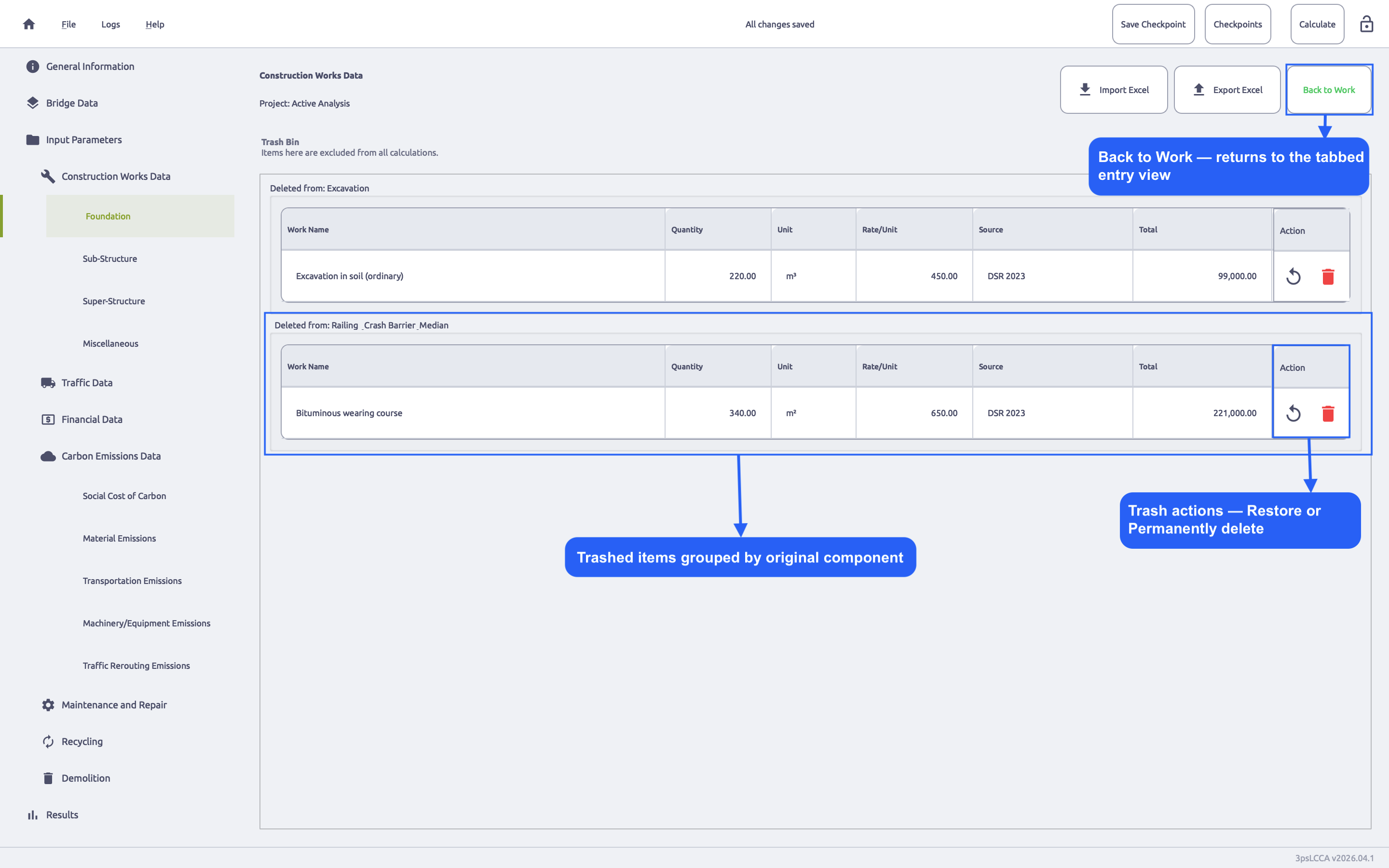
The view switches from the four-tab workspace to the Trash Bin view.
- The Trash button label becomes Back to Work
- Trashed items are grouped under headings of the form Deleted from: <Component>
- Trashed items are explicitly excluded from all calculations
C.8.3 Restoring a material
In Trash Bin, click Restore on a row.
Effect:
- The item is removed from Trash
- The item is reinserted into its original component table
- The Trash count updates
C.8.4 Permanently deleting a material
In Trash Bin, click Permanently delete on a row. Confirmation is required.
Permanent delete cannot be undone.
C.9 Example values - Sone River Road Bridge (45 m RCC T-Girder)
Use the following example entries to populate Construction Work Data for the Sone River Road Bridge. These are representative quantities for a straightforward RCC T-Girder bridge and are intended for demonstrating workflow and reporting.
These entries are examples for the guide. Use project-specific BOQ values for real analyses.
C.9.1 Foundation tab - example materials
Component: Excavation
| Material Name | Quantity | Unit | Rate (INR) | Rate Source |
|---|---|---|---|---|
| Excavation in soil (ordinary) | 220 | m3 | 450 | DSR 2023 |
| Dewatering and disposal | 1 | ls | 250000 | Project estimate |
Component: Pile
| Material Name | Quantity | Unit | Rate (INR) | Rate Source |
|---|---|---|---|---|
| Bored cast-in-situ RCC pile concrete (M30) | 120 | m3 | 6500 | Market rate (Bihar) |
| Reinforcement steel (Fe500) | 14 | tonne | 72000 | Market rate (steel) |
| Pile cage fabrication and placing | 1 | ls | 180000 | Contractor quote |
Component: Pile Cap
| Material Name | Quantity | Unit | Rate (INR) | Rate Source |
|---|---|---|---|---|
| RCC in pile cap (M30) | 95 | m3 | 6500 | Market rate (Bihar) |
| Reinforcement steel (Fe500) | 11 | tonne | 72000 | Market rate (steel) |
| Formwork for pile cap | 650 | m2 | 950 | DSR 2023 |
C.9.2 Sub-Structure tab - example materials
Component: Pier
| Material Name | Quantity | Unit | Rate (INR) | Rate Source |
|---|---|---|---|---|
| RCC in pier shaft (M35) | 80 | m3 | 7000 | Market rate (Bihar) |
| Reinforcement steel (Fe500) | 12 | tonne | 72000 | Market rate (steel) |
| Formwork for pier shaft | 900 | m2 | 1050 | DSR 2023 |
Component: Pier Cap
| Material Name | Quantity | Unit | Rate (INR) | Rate Source |
|---|---|---|---|---|
| RCC in pier cap (M35) | 55 | m3 | 7000 | Market rate (Bihar) |
| Reinforcement steel (Fe500) | 8 | tonne | 72000 | Market rate (steel) |
| Formwork for pier cap | 520 | m2 | 1050 | DSR 2023 |
Component: Pedestal
| Material Name | Quantity | Unit | Rate (INR) | Rate Source |
|---|---|---|---|---|
| RCC in pedestal (M35) | 12 | m3 | 7000 | Market rate (Bihar) |
| Reinforcement steel (Fe500) | 1.5 | tonne | 72000 | Market rate (steel) |
Component: Bearings
| Material Name | Quantity | Unit | Rate (INR) | Rate Source |
|---|---|---|---|---|
| Elastomeric bearings (neoprene) | 16 | nos | 18000 | Vendor quote |
C.9.3 Super-Structure tab - example materials
Component: Girder
| Material Name | Quantity | Unit | Rate (INR) | Rate Source |
|---|---|---|---|---|
| Precast RCC T-girders (M40) | 160 | m3 | 8200 | Market rate (precast yard) |
| Reinforcement steel (Fe500) | 20 | tonne | 72000 | Market rate (steel) |
| Erection of girders (crane + labour) | 1 | ls | 350000 | Contractor quote |
Component: Deck Slab
| Material Name | Quantity | Unit | Rate (INR) | Rate Source |
|---|---|---|---|---|
| RCC in deck slab (M35) | 95 | m3 | 7000 | Market rate (Bihar) |
| Reinforcement steel (Fe500) | 16 | tonne | 72000 | Market rate (steel) |
| Formwork for deck slab | 1200 | m2 | 950 | DSR 2023 |
Component: Diaphragm
| Material Name | Quantity | Unit | Rate (INR) | Rate Source |
|---|---|---|---|---|
| RCC diaphragms (M35) | 18 | m3 | 7000 | Market rate (Bihar) |
| Reinforcement steel (Fe500) | 3 | tonne | 72000 | Market rate (steel) |
Component: Cross Bracings
| Material Name | Quantity | Unit | Rate (INR) | Rate Source |
|---|---|---|---|---|
| RCC cross bracings (M35) | 10 | m3 | 7000 | Market rate (Bihar) |
| Reinforcement steel (Fe500) | 2 | tonne | 72000 | Market rate (steel) |
C.9.4 Miscellaneous tab - example materials
Component: Railing & Crash Barrier & Median
| Material Name | Quantity | Unit | Rate (INR) | Rate Source |
|---|---|---|---|---|
| RCC railing/parapet (M30) | 35 | m3 | 6500 | Market rate (Bihar) |
| Crash barrier (steel) | 180 | m | 3200 | Vendor quote |
Component: Drainage
| Material Name | Quantity | Unit | Rate (INR) | Rate Source |
|---|---|---|---|---|
| Drain spouts / weep holes | 40 | nos | 450 | DSR 2023 |
| Drainage pipe and fittings | 1 | ls | 45000 | Project estimate |
Component: Asphalt, Utilities and Other Materials
| Material Name | Quantity | Unit | Rate (INR) | Rate Source |
|---|---|---|---|---|
| Bituminous wearing course | 340 | m2 | 650 | DSR 2023 |
| Approach slab / utility shifting | 1 | ls | 200000 | Project estimate |
Component: Waterproofing
| Material Name | Quantity | Unit | Rate (INR) | Rate Source |
|---|---|---|---|---|
| Waterproofing membrane | 340 | m2 | 420 | DSR 2023 |
C - Screenshot checklist
| Checklist Item | File |
|---|---|
| Construction Work Data - Overview (annotated) | documentation_images/PartC/01_construction_work_data_overview.png |
| Foundation Tab - Layout (annotated) | documentation_images/PartC/02_foundation_tab_layout.png |
| Sub-Structure Tab (annotated) | documentation_images/PartC/03_sub_structure_tab.png |
| Super-Structure Tab (annotated) | documentation_images/PartC/04_super_structure_tab.png |
| Miscellaneous Tab (annotated) | documentation_images/PartC/05_miscellaneous_tab.png |
| Material Dialog - Overview (annotated) | documentation_images/PartC/06_material_dialog_overview.png |
| Trash View (annotated) | documentation_images/PartC/08_trash_view.png |